If you want to make the "today" or "status" line stand out more you can
- Add a shape to the end of the line and
- Change the location of the text
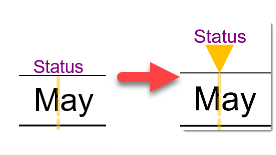
Add the shape
Add the desired shape to the page and format it as you want. In this example, it is a simple triangle, rotated and with an orange fill.
Select the connection tool.
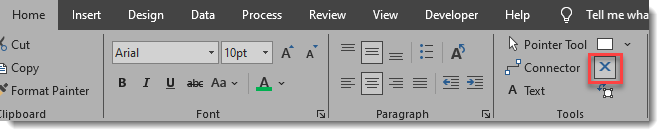
Zoom into your new shape but don't select it. The existing connection points are shown as grey dots:
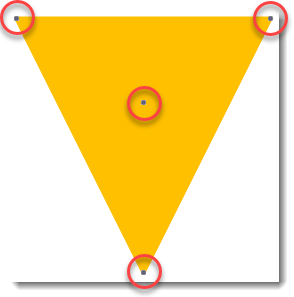
If there isn't a connection point where one is needed, click with the connector tool to add one.
Right-click the relevant connection point and select "inward and outward". This will make this connection point "sticky", so it can connect to other shapes.
Drag the shape to the top of the status line, then release it when the connection point turns green. It is not connected to the status line and will move with it.
Moving the text
Select the text tool
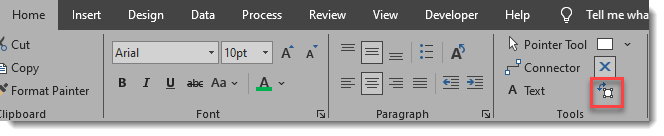
Select the status line, and the text will highlight with a box around it.
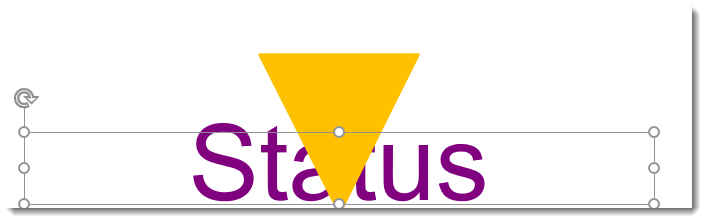
Drag the text to where you want it displayed:
