I will assume you know about conditional formatting – there is a world of information out there on it and conditional formatting is one of the neatest tricks Excel has to make data easier to read. If there is any demand I will produce an entry on some of the more useful uses of conditional formatting.
One thing that can be very useful it to show which cell in a sheet / table are not calculated. This is especially useful if you have a table which is generally calculated however in a few places you've overwritten the calculation with a specific value.
- Make a named range "Cellhasformula" that is defined as =GET.CELL(48,INDIRECT("rc",FALSE)
- Click on Formulas and then Name Manager and then "New"
- In the "Name" box type Cellhasformula
- In "Refers to:" type (or copy from here) =GET.CELL(48,INDIRECT("rc",FALSE))
- If copying watch out that excel doesn't insert spurious quote marks!
- Click OK
- Apply some conditional formatting to pick out the cells which don't have a formula in
- Click on a cell in the range you want to colour.
- In Styles click on Conditional Formatting and chose "new rule"
- Click on "Use formula to determine which cells to format"
- Enter the following into the "Format values where this formula is true" box: =NOT(Cellhasformula)
- Chose the formatting to be applied and Click OK
- Chose the range where you want this formatting to be applied (or use copy / paste special / formatting)
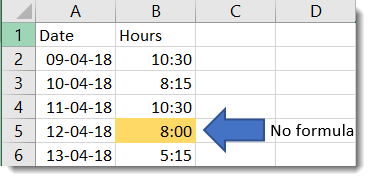
When saving the workbook you will need to chose to save it as macro enabled workbook. The reason for this that the formula GET.CELL is an expression from the XLM macro language which preceded the current VBA language used in Excel. This is the only way I have found to highlight formulae in Excel so it is worth saving as a macro enabled workbook.